Members and roles
Invite colleagues and give each a role: Owner, Admin, Member or Viewer. What each role may do, and how many seats each plan has.
Updated October 17, 2026
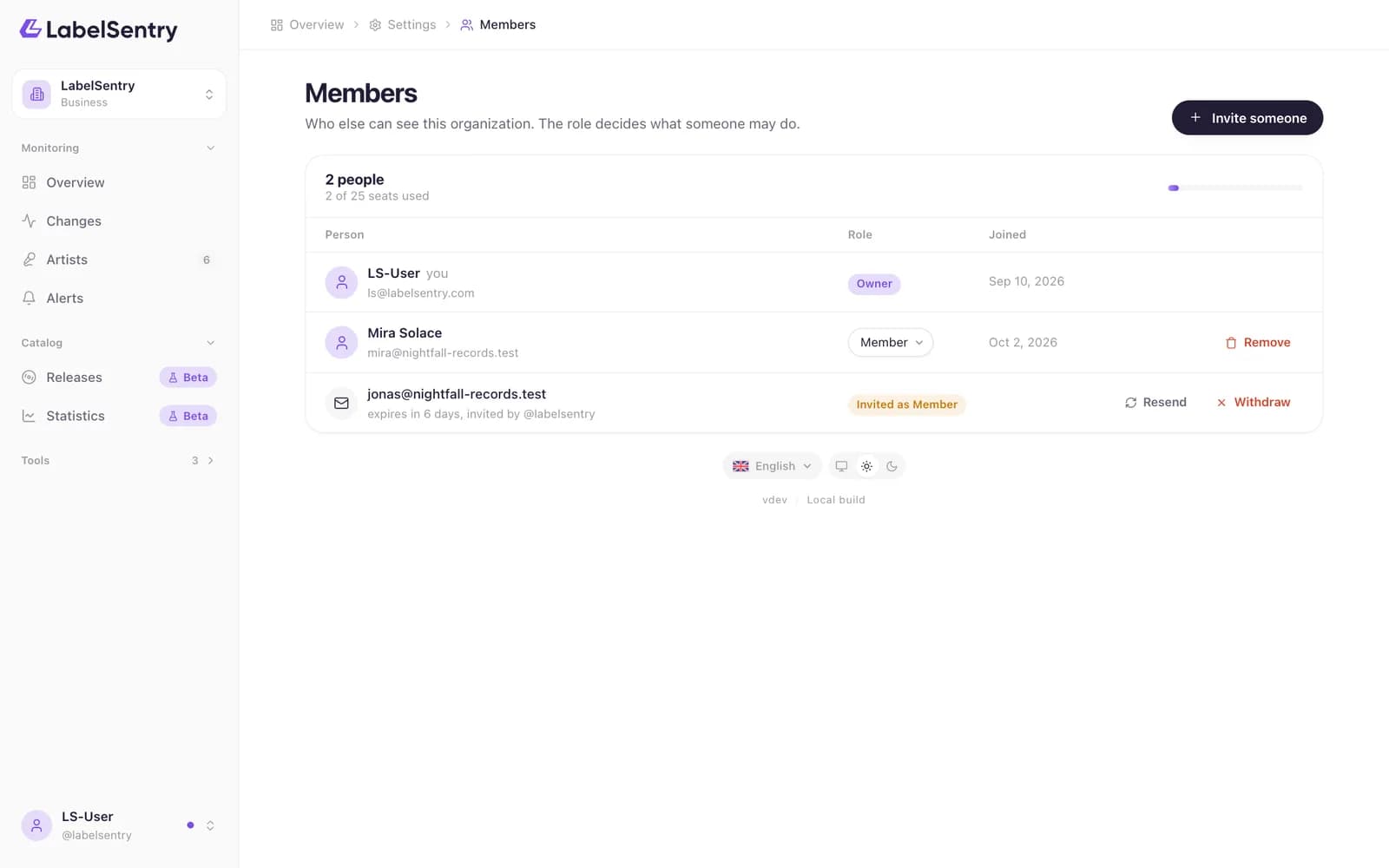
Invite someone
- Open the menu under your name and choose Members.
- Choose Invite someone, enter the email address and pick a role.
- The person gets an email and joins after signing in or creating an account. Until then the invitation is listed with Resend and Withdraw.
You can only give roles up to your own. Nobody can be invited as owner.
What each role may do
| Viewer | Member | Admin | Owner | |
|---|---|---|---|---|
| See artists, changes and statistics | yes | yes | yes | yes |
| Add and remove artists, mark changes as done | no | yes | yes | yes |
| Verify artists | no | no | yes | yes |
| Manage destinations and rules | no | no | yes | yes |
| Manage members and API keys | no | no | yes | yes |
| Rename the organization, see the audit log | no | no | yes | yes |
| Manage the plan and billing | no | no | no | yes |
| Delete or hand over the organization | no | no | no | yes |
Seats
Every member takes a seat: 1 on Free, Beginner and Artist, 3 on Pro and 25 on Business. More seats come in add-ons of 3. See Plans.
Read next
OrganizationsAn organization holds your artists, alerts, plan and team. How to rename it, switch between several and what belongs to it.Require two-factor sign-inOn Business, owners can require every member to use two-factor sign-in.PlansWhat Free, Beginner, Artist, Pro and Business include: artists, seats, how often we check, history, alerts, API, Remi and more.
Still stuck? Write to [email protected].